Devices & API keys
A device is a machine you pair with your workspace so agents can run on your own hardware · it is an ordinary API key with a fixed set of scopes, nothing more exotic than that. This page covers pairing a machine at /connect, reading the scope model that every key uses, and the difference between rotating a credential and revoking it.
#What a device actually is
There is no special “daemon” credential type. When you pair a machine, AgentSDE mints a normal API key with a defined set of device scopes and hands it to the Connect daemon running on that box. The daemon holds that key the same way a CI script or a dashboard would · it just happens to also register as a self-hosted runner your agents can dispatch work to.
That is the one fact worth internalising · a device is an API key. It sits in the same table as every other key, carries the same lifecycle (rotate, revoke, expiry), and is bounded by the same workspace policies. The only extra is provenance: a paired machine shows a Device badge and is named device · <host> so you can tell at a glance which key belongs to which box.
Because a device is just a key, there is nothing per-device to configure. A machine acts as the workspace on that box · it can only touch the repositories the workspace already allows and is governed by the workspace’s own policies. There are no per-device permission switches, because the backend has none.
#Pair a machine at /connect
Pairing follows a device-code flow · you start it from a terminal on the machine, then approve it once in the browser. The machine never handles a password, and the code stays valid while you sign in.
Install the Connect daemon
Download and install the AgentSDE Connect daemon binary on the machine you want to pair. This is the small process that receives dispatched runs and executes phases using that box’s shell, toolchain and network.
Start the login flow
Run agentsde login on the machine (add --workspace <slug> to target a specific workspace). The daemon prints an 8-character device code like WXYZ-1234 and waits for approval.
Approve at /connect
Open /connect in your browser, enter the code, and pick which workspace the device runs for. The card shows the requesting machine · host, OS, IP, and the read-only What this device can do grant · so you can confirm you are approving the right box before you click Approve.
Land connected
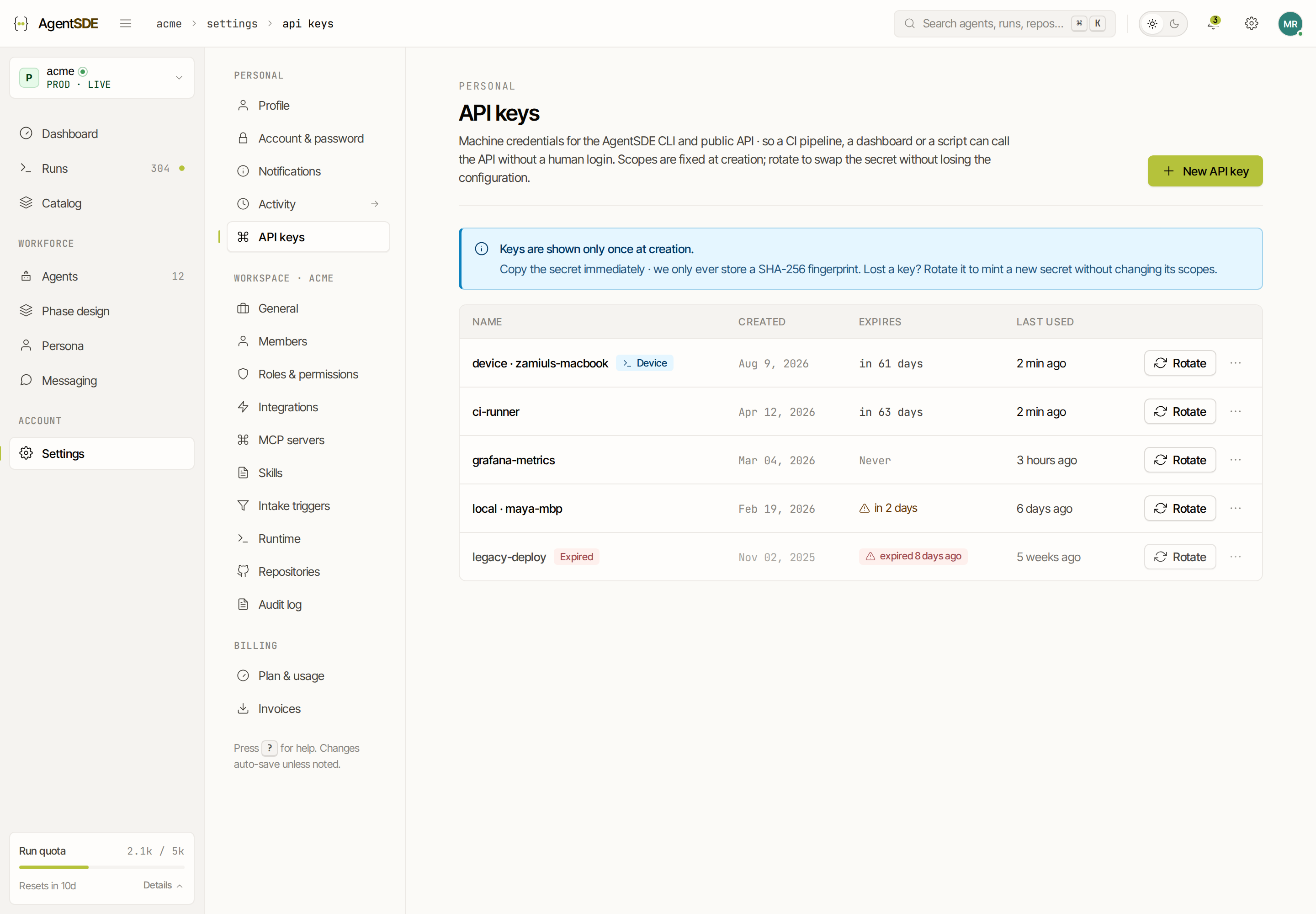
The page confirms Device connected and the daemon starts taking work. Approving minted an API key named device · <host>, which now appears in both Settings → Runtime and Settings → API keys.
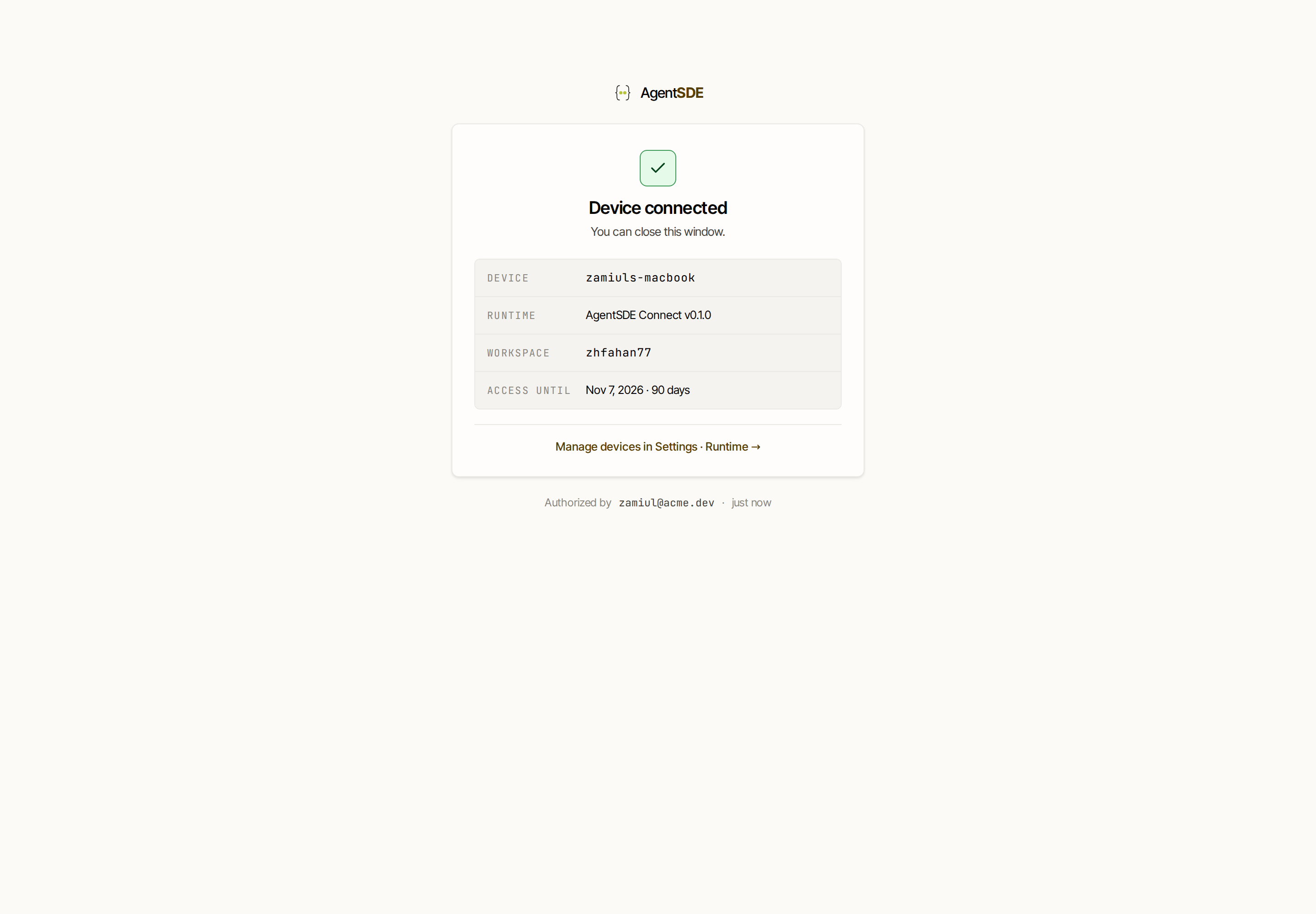
A workspace pairs a single device · deliberately. Fleets need labels, slot counts and a scheduler the runtime does not have yet, so a roster UI would promise routing it cannot deliver. Pairing a new machine replaces the old one.
#What the grant allows
The What this device can do block on the approve card, and the matching disclosure in Settings → Runtime, are shown read-only on purpose · the same honesty rule as connected integrations, where access is fixed at grant time. Nothing in the list is a toggle.
#Access is time-boxed
Device access lasts 90 days, then it asks again. When it lapses the daemon stops taking work and goes back to the start · run agentsde login on the same machine, get a fresh code, and approve it at the same /connect card. There is no separate re-authorise flow. A lapsed device is treated exactly like an offline one · the Settings → Runtime no-device rule applies, and runs wait in Needs input until a device is connected and you Restart them · see Stop, retry, restart.
#API keys and scopes
Every key · device or not · uses one scope grammar: resource:action with an optional resource:action:subAction. A scope names a resource (like runs or repos), an action (read, write, destroy), and sometimes a finer sub-action (for example runs:write:approve for approving a merge). You do not usually type these by hand.
The picker is preset-first · you start from a named role that already carries a sensible scope set, and only drop into the individual scopes if you need to. Each choice renders a plain-language summary of what the key can do, so the grant reads in English before you create it.
The admin scope is deliberately outside the grammar. It is not the same as ticking every box · it bypasses every permission check and can do anything your account can, including managing members, billing and other keys. Grant it only when a machine genuinely needs to administer the workspace.
The Connect daemon · headless preset is the browser-less path to the same key a paired device gets · identical scopes, for a container or headless server that can’t complete the /connect approval. The only difference is that no machine registers as a device in Runtime.
#Rotate vs revoke
Both actions end in a reveal-once secret · the full <prefix>.<secret> is shown a single time at creation and is never recoverable afterward. What differs is the intent.
Rotate keeps the integration and swaps the credential. It mints a brand-new secret, carries the configuration over, and kills the current token in the same step · so anything still using the old secret stops working until you give it the new one.
Revoke kills the integration outright. Any client using the key immediately gets 401s, and there is no way back · you would create a new key from scratch.
A device’s key is an ordinary key, so rotating or revoking it in Settings → API keys disconnects the machine · the daemon stops taking work. There is no way to hand it a new secret remotely, so it comes back only when someone runs agentsde login on that box again.
#Where to find them
- Devices live in
Settings → Runtime· a read-only row for the paired machine (status, host, Connect version, last seen, expiry) with the What this device can do disclosure and a Revoke action. - API keys live in
Settings → API keys· every credential, device or otherwise, with Rotate and Revoke. Device-minted keys carry a Device badge so you can see which machine a key belongs to.
Revoking the device from Runtime and revoking its key from API keys are the same act · both cut the machine off. Lapsing is not revocation · lapsing just means the 90-day lease ran out and a fresh agentsde login will renew it.